
In my first blog post I will try to describe in simply steps how to setting up a local AI environment in a home computer (a reduced version of ChatGPT or Claude to be easy to understand).
And to be more magical… it will run 100% in our computer with a graphic card (also called GPU) that you can buy in internet for even less than 200$!!!!
Setting up your own local AI environment might sound intimidating at first, but it’s actually very doable, you just need:
- A not very old NVIDIA GPU with at least 6GB of VRAM
- Almost any computer with a minimum of 8 GB of RAM
- I recommend to use a not very old Linux distro, like Ubuntu 24
You can quickly check if your system sees your GPU with:
lspci | grep -i nvidia
If you see an output mentioning NVIDIA, you’re good to go.
Let’s get started…
🔧 Step 1: Prepare the system
Think of drivers as the “translator” between your OS and your GPU. Without them, CUDA won’t work.
Start by removing any previous driver you have installed in your system:
sudo apt-get remove --purge '^nvidia-.*'
sudo apt-get remove --purge '^libnvidia-.*'
sudo apt-get remove --purge '^cuda-.*'
Then you update your system:
sudo apt update && sudo apt upgrade -y
Install the latest linux-headers, that contain the functions that the Linux kernel provides that can be called from other programs like the CUDA drivers.
sudo apt-get install linux-headers-$(uname -r)
If in the future you have any issues after updating any software in the system, repeat the previous steps and install again the drivers.
⚙️ Step 2: Install CUDA Toolkit and NVIDIA Drivers
CUDA (Compute Unified Device Architecture) is a parallel computing platform and programming model by NVIDIA that enables GPUs to perform general-purpose computing (math, AI, simulation). NVIDIA drivers allow the operating system to communicate with the GPU. CUDA requires the NVIDIA drivers to function, acting as a software layer on top of it.
Before installing the NVIDIA drivers and the CUDA Toolkit, visit the official NVIDIA website to be sure that you are installing the newests. With these 2 commands (update the version) you will install both the NVIDIA drivers and the CUDA Toolkit:
wget https://developer.download.nvidia.com/compute/cuda/13.2.1/local_installers/cuda_13.2.1_595.58.03_linux.run
sudo sh cuda_13.2.1_595.58.03_linux.run
If you have any problems, try other installation options provided at the official NVIDIA website.
Then confirm everything works running the NVIDIA System Management Interface:
nvidia-smi
You should see a table with the NVIDIA driver version, the CUDA Toolkit version and with you GPU info:

🤖 Step 3: Install and run Ollama with a reduced LLM
Ollama is an open-source tool designed to run large language models (LLMs) locally on your own machine.
To install Ollama you just need to run this command:
curl -fsSL https://ollama.com/install.sh | sh
It will be required to reinstall Ollama if you install new NVIDIA drivers and CUDA Toolkit, if not it will not recognize the GPU and running LLMs will be very slow.
I recommend to read this post that inspired me to use Qwen3.5 4B Q4_K_M with my NVIDIA GeForce RTX 3050. As the author claims, it punches above its weight for a 4B model, handles reasoning, code, and long instructions like a champ and barely touches 3.5GB VRAM!!! It reduces model size by ~60–70% vs FP16 with minimal quality loss, that’s the difference between “impossible” and “runs perfectly” on 6GB.
Here is a small summary of what kind of GPU you need depending of the model size:
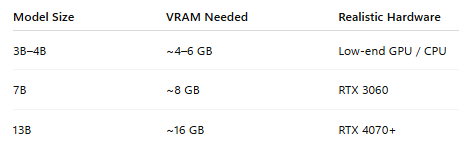
The Ollama ‘pull’ command downloads Large Language Models (LLMs) from the Ollama model library to your local machine:
ollama pull qwen3.5:4b-q4_K_M
And the last step is to run locally the LLM model:
ollama run qwen3.5:4b-q4_K_M
At the same time open in a new terminal el NVIDIA System Management Interface to verify that the GPU is running correctly. Personally I prefer the ‘nvtop’ command, you can find here info to install and run it.
watch -n0.1 nvidia-smi
🧪 Step 4: Test how the LLM Qwen3.5 4B Q4_K_M runs locally
For a test of its capabilities I used a similar question that I asked to one of the first versions of ChatGPT 2 years ago, and made me to start believing in the potential of the AI technology: “Write a code in R to build a Shiny server that shows UMAP figures from a Seurat analysis of scRNA-seq data”
Watch the video, amazing not???
PD: This article was not fully written with AI yet 😉